Getting started#
Install#
From an installer. Windows: run Ohm-<version>-x64-Setup.exe and follow the wizard
(it installs per user, so there is no admin prompt). macOS: open the DMG and drag Ohm to
Applications. Both are built from installers/.
From source. Node 22 or newer:
git clone <repo> && cd ohm
npm install
npm start          # production build, then run
For day-to-day work use the dev loop instead — Vite serves the UI with hot reload and Electron restarts when the main process changes:
npm run dev
And before committing:
npm run check # engine-boundary lint + typecheck + tests
First run#
Ohm creates Documents/Ohm and seeds it with example scripts (ai/, models/,
browse.ohm, math.ohm, README.md and others). The window opens on a normal web page —
it is a browser first.
Across the top is the tab strip and the address bar. Down the left is the activity bar:
| Icon | Panel | Shortcut |
|---|---|---|
∮ |
Scripts | Ctrl+Shift+E |
▦ |
Projects | Ctrl+Shift+P |
◐ |
Hidden tabs | Ctrl+Shift+H |
✎ |
Editor | |
◎ |
Context (tabs and what is on them) | |
? |
Help (this documentation) | |
⚙ |
Settings | |
▤ |
Console | Ctrl+` |
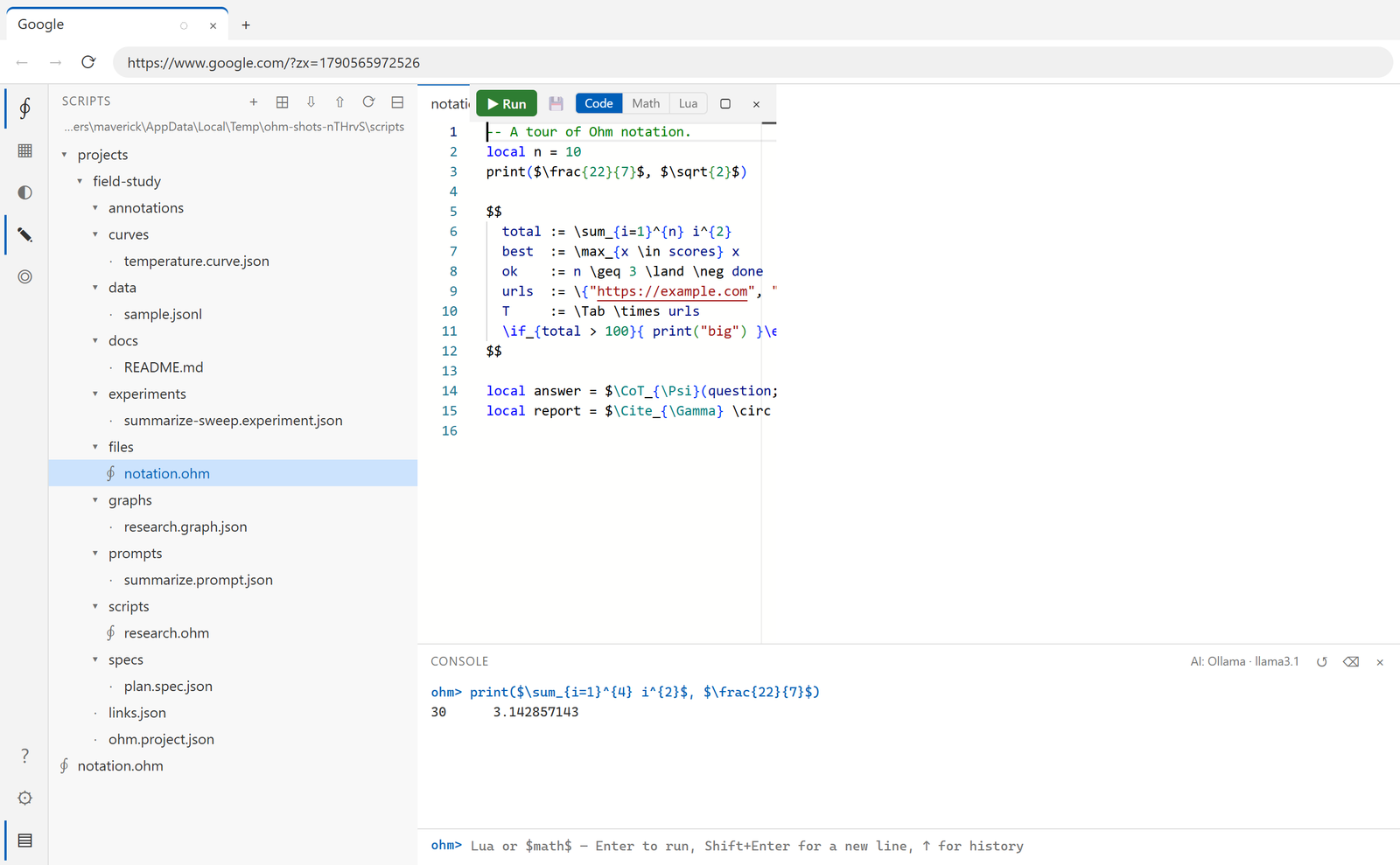
Nothing is modal: the page keeps loading while the editor is open, and the console keeps its Lua session between lines.
Run your first script#
Open the console (Ctrl+` ) and type:
print($\frac{22}{7}$)
That is the whole idea of the language: $…$ is LaTeX math used as an ordinary Lua
expression. It prints 3.142857143.
Now something that uses the browser. Open the Scripts panel, hover a script and press ▶,
or open browse.ohm in the editor and press F5:
local tab = browser.open("https://example.com", { hidden = true })
print(tab.title())
The tab runs in the background; Ctrl+Shift+H shows hidden tabs if you want to watch.
Connect a model#
Open Settings (⚙) and add a model profile. The quickest local option is Ollama if you
already run it; otherwise add an API profile and paste a key — keys are encrypted by the
OS and never handed to the UI or to scripts.
Then:
print(ai.generate("Summarise the page I have open in three bullets."))
See Models and settings for every provider, the models folder, Hugging Face downloads, embedded llama.cpp and in-browser (WebGPU) models.
Make a project#
Projects turn a folder into a workspace with links, documents, data, scripts, prompts,
experiments, curves, graphs and specs. Open the Projects panel (Ctrl+Shift+P), create one,
and drop a PDF into its Files section — you can read and annotate it in place.
The Projects guide covers the rest, including deep-research projects that fan out searches across hidden tabs and write a cited report.
Read the help inside Ohm#
This documentation ships with the app. Press ? in the activity bar and it opens as a
searchable site — the same guides, reference pages and specifications you are reading now,
with "Open in a tab" if you would rather keep it beside your work.
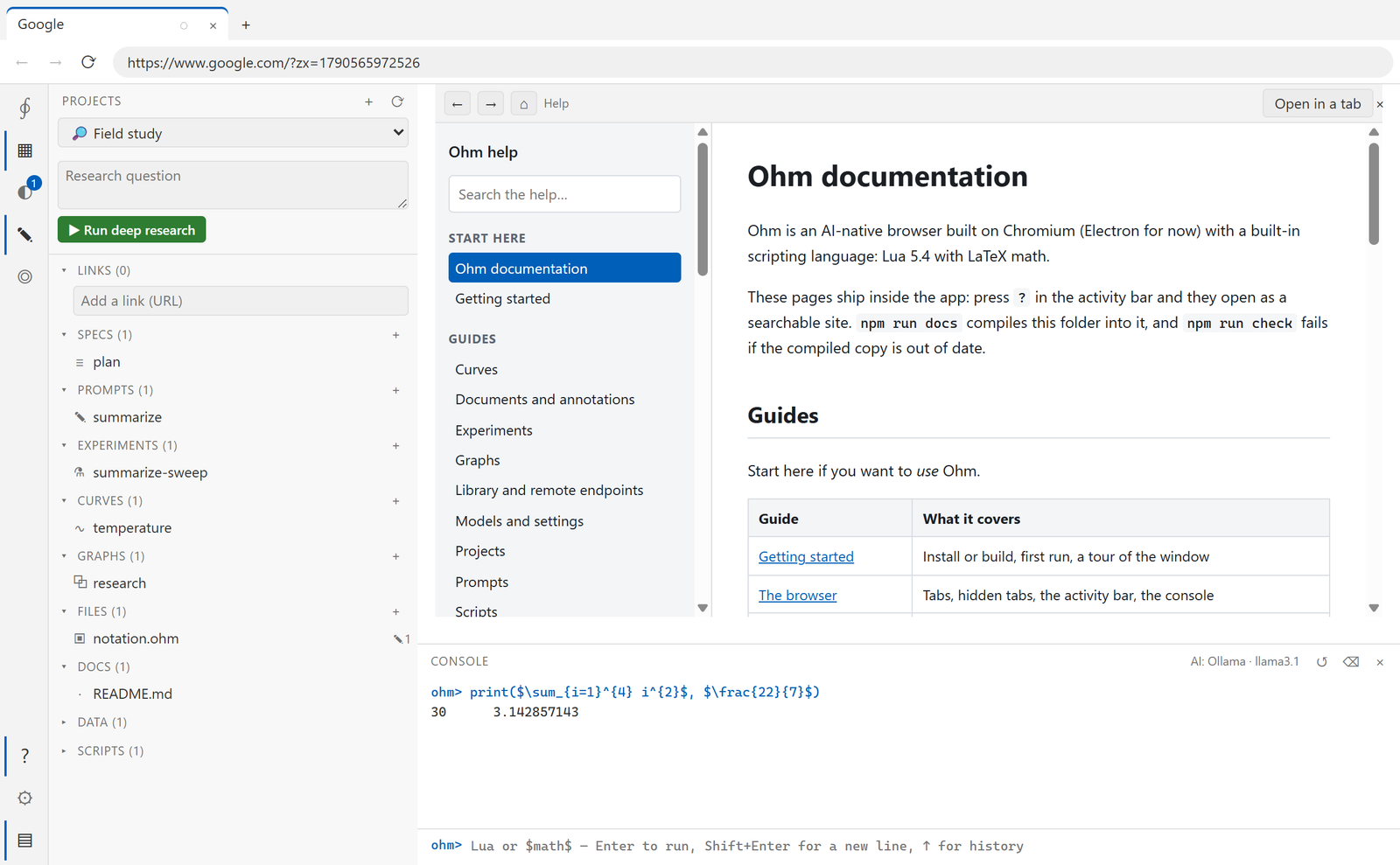
The site is generated from docs/, so a build of Ohm always ships the help that matches
it. From source, npm run docs recompiles it; npm run check fails if it is stale.
Where things live#
| What | Where |
|---|---|
| Scripts and projects | Documents/Ohm |
| Settings, credentials, models | the data folder (%APPDATA%\Ohm on Windows) |
| Cookies, cache, logged-in sites | the browser profile, inside the data folder |
| Which folders to use | config.json, beside the data folder by default |
All of them can be moved — from Settings → Folders, or with --data-dir,
--profile-dir, --scripts-dir and --models-dir for one run. See
Storage and Environment.