Documents and annotations#
Drop a PDF, a Word document, a spreadsheet, a slide deck, an image or a text file into a project's Files section and read it in the app. Nothing is uploaded and no external viewer opens.
Add files with + in the Files section. A name collision becomes report (2).pdf — an
import never overwrites.
The viewers#
PDF — page navigation, zoom, real selectable text (pdf.js's own text layer), and two ways to annotate: select text and press Annotate selection, or drag a box anywhere on the page.
Word (.docx) — converted with mammoth, so you get headings, lists, tables and images
but not exact page layout. Select a passage to annotate it.
Spreadsheets (.xlsx, .xls, .csv, .tsv) — one tab per sheet, sticky column letters
and row numbers. Click a cell to annotate it.
Slides (.pptx) — parsed straight from the OOXML: a thumbnail strip, positioned text and
images at the right scale, and speaker notes underneath. Drag a box on a slide to annotate
it.
Images — shown as-is, with box annotations.
Source files (.ohm, .lua, .ts, .js, .java, .c, .go, .py, plain text…) —
see below. .ohm files also get the Math view.
Annotating code#
A text file opens in the Code view: numbered lines, with a capture mode that decides what an annotation is attached to. Click a line (or a word in it) to put the cursor there, choose the mode, and press Annotate.
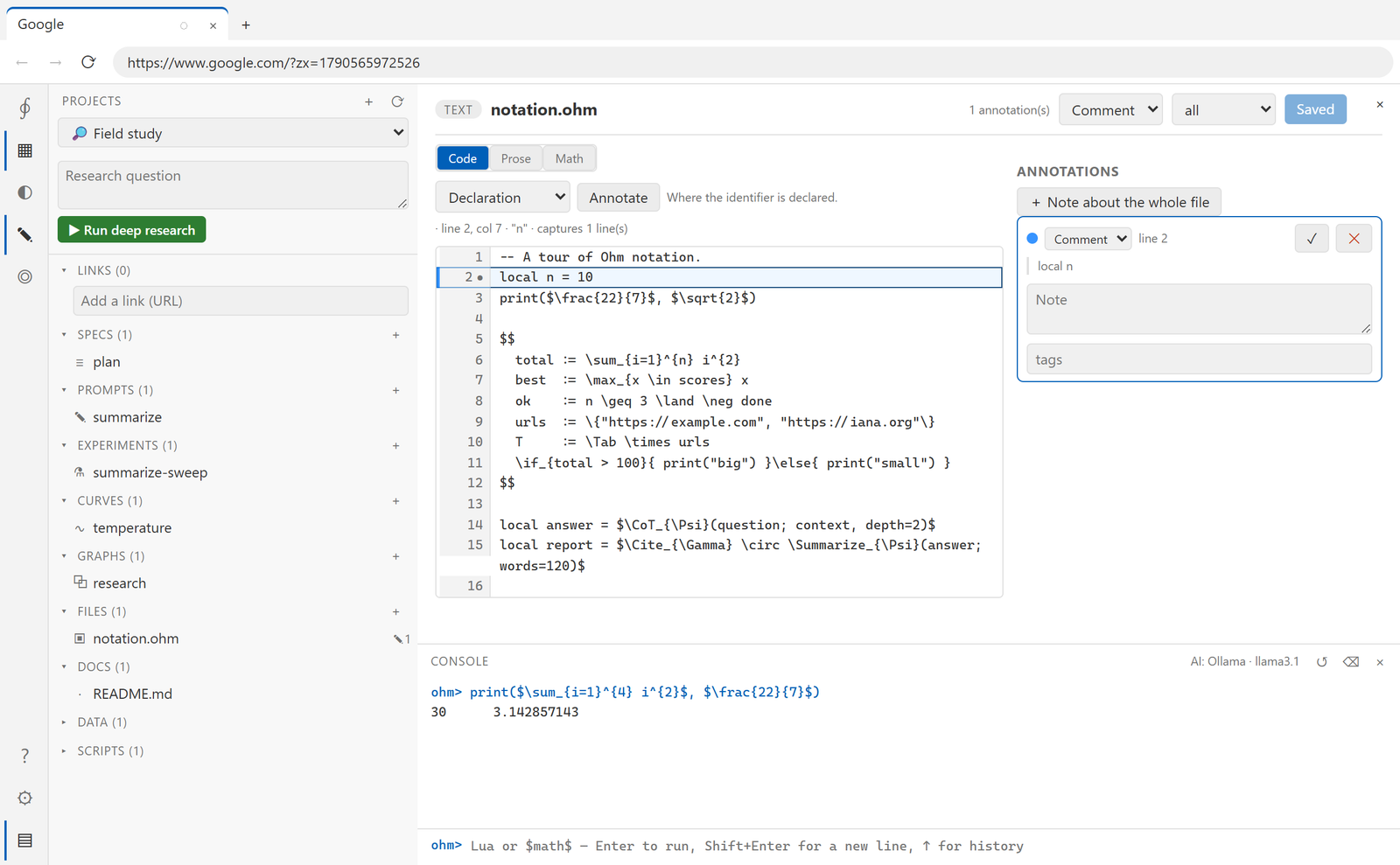
The toolbar says what the chosen mode would capture before you commit to it — above,
Declaration at line 2, column 7 captures one line.
| Mode | Captures |
|---|---|
| Cursor | a point |
| Line | the whole line |
| Word | the word under the cursor |
| Statement | the statement around the cursor |
| Inside / With brackets | what the innermost brackets contain, with or without them |
| Function / Class / If / While / For body | the enclosing block |
| Variable, Declaration, Assignment, Call | the identifier under the cursor, where it is declared, where it is assigned, or the call around it |
| Whole file | everything |
The toolbar previews the capture as you move: the cursor position, the word under it, how many lines would be captured — or, when the mode does not apply, why ("The cursor is not inside brackets"). The lines that would be captured are tinted before you commit.
Block and identifier modes need a language Ohm recognises — Lua and Ohm, JavaScript and TypeScript, Java, C and C++, Go, C# and Rust. Other files get the positional modes, and the toolbar says so.
Switch to Prose to annotate a quoted passage instead, the way Word documents work.
When the code moves#
A code annotation stores the text it captured, not just a line number. When the file changes underneath it, the viewer says so rather than quietly pointing at the wrong line:
- the note's highlight is drawn where its text actually is now;
- a bar under the file lists every anchor that moved, with Follow to line N to update it;
- an anchor whose text is gone is reported as drifted, and one past the end of the file as orphaned.
Nothing moves on its own — following a drift is a click, so a note never re-anchors itself to something you did not choose.
Annotations#
Six types, each with its own colour: comment, highlight, to do, question, issue, spec note. Pick the type for new annotations in the header.
Each annotation keeps the text you quoted or the region you drew, a note, tags, and an
open/resolved state. The sidebar lists them all, with a filter for open-only, and
+ Note about the whole file for a note that is not tied to a position.
Annotations are anchored per format so they survive reopening and zooming:
| Document | Anchor |
|---|---|
| page number and a rectangle in page units | |
| Slides | slide number and a rectangle in slide units |
| Spreadsheet | sheet name and cell reference |
| Word, text | the quoted text |
| Image | a rectangle in image pixels |
Zooming never rewrites an anchor — rectangles are stored scale-free and projected on display.
Edits autosave about a second after you stop typing; the header button shows Save or Saved. If you switch files immediately after typing, give it that second.
Where they are stored#
Alongside the document, in the project:
projects/<id>/files/report.pdf
projects/<id>/annotations/report.pdf.annots.json
The sidecar is plain JSON, so it diffs and merges like anything else. Deleting a document
deletes its annotations. The file tree shows ✎N next to each document with the current
count.
Both documents and annotations travel inside a project bundle, so exporting and restoring keeps your notes.
Known rough edges#
- Selecting text in the Word or text viewer creates an annotation immediately — use the toolbar button deliberately and avoid stray selections for now.
- A spreadsheet with blank rows, or one whose data does not start at A1, can record a cell reference that differs from what Excel shows.
.pptxgroup shapes, tables and charts are not rendered yet.- Files Ohm does not recognise are shown as text.
These are tracked in the documents spec.