Storage#
Three tiers, and only one of them is the source of truth.
1. Files#
Everything — scripts, projects, prompts, experiments, curves, graphs, specs, documents and
annotations — is a plain file under your scripts folder (Documents/Ohm by default).
Documents/Ohm/
├─ *.ohm                      your scripts
├─ .ohm/                      memory, trash, screenshots (hidden)
└─ projects/<id>/             one folder per project
You can read them, edit them in any editor, diff them, put them in git and back them up the way you back up anything else. Every write is atomic — a temp file and a rename — so an interrupted save cannot leave a half-written document.
Item saves keep the last 50 versions in <item>.versions/, restorable from the History
panel in each editor.
2. Bundles#
A bundle is one JSON file holding an entire project: the manifest, links, every item, the
text under docs/, data/, scripts/ and annotations/, and the documents in files/
as base64.
Settings → Scripts, or the Projects panel:
- Export bundle — save to
<id>.ohm-bundle.json. - Import bundle — pick a file; it is imported as a new project (the id gets a numeric suffix if it is taken) and becomes active. An import never modifies an existing project.
Two limits to know: text files over 5 MB and documents past a 50 MB total are skipped, and
only .ohm scripts are included. A very large project can therefore export slightly lossily
— check the bundle if that matters to you.
3. The browser mirror#
Ohm can also keep a copy of a project inside the app's own database (IndexedDB):
- Mirror active project to browser DB — copy it now.
- Mirror after every save — keep it current automatically.
- Restore as new project — write a mirrored copy back to disk as
<name> (restored).
The mirror is a convenience backup, not a second source of truth: it is per-machine, invisible to git, and cleared if you clear site data. Use bundles to move work between machines.
Where the rest lives#
| What | Where | Move it with |
|---|---|---|
| Scripts and projects | Documents/Ohm |
--scripts-dir, OHM_SCRIPTS_DIR |
| Settings and encrypted credentials | the data folder | --data-dir, OHM_DATA_DIR |
| Cookies, cache, logged-in sites | the browser profile, inside the data folder | --profile-dir, OHM_PROFILE_DIR |
| Downloaded models | <data>/models, changeable in Settings |
--models-dir, OHM_MODELS_DIR |
Moving a folder#
Settings → Folders shows all four, where each one currently is and why — a flag, a variable, the config file or the default — and changes any of them:
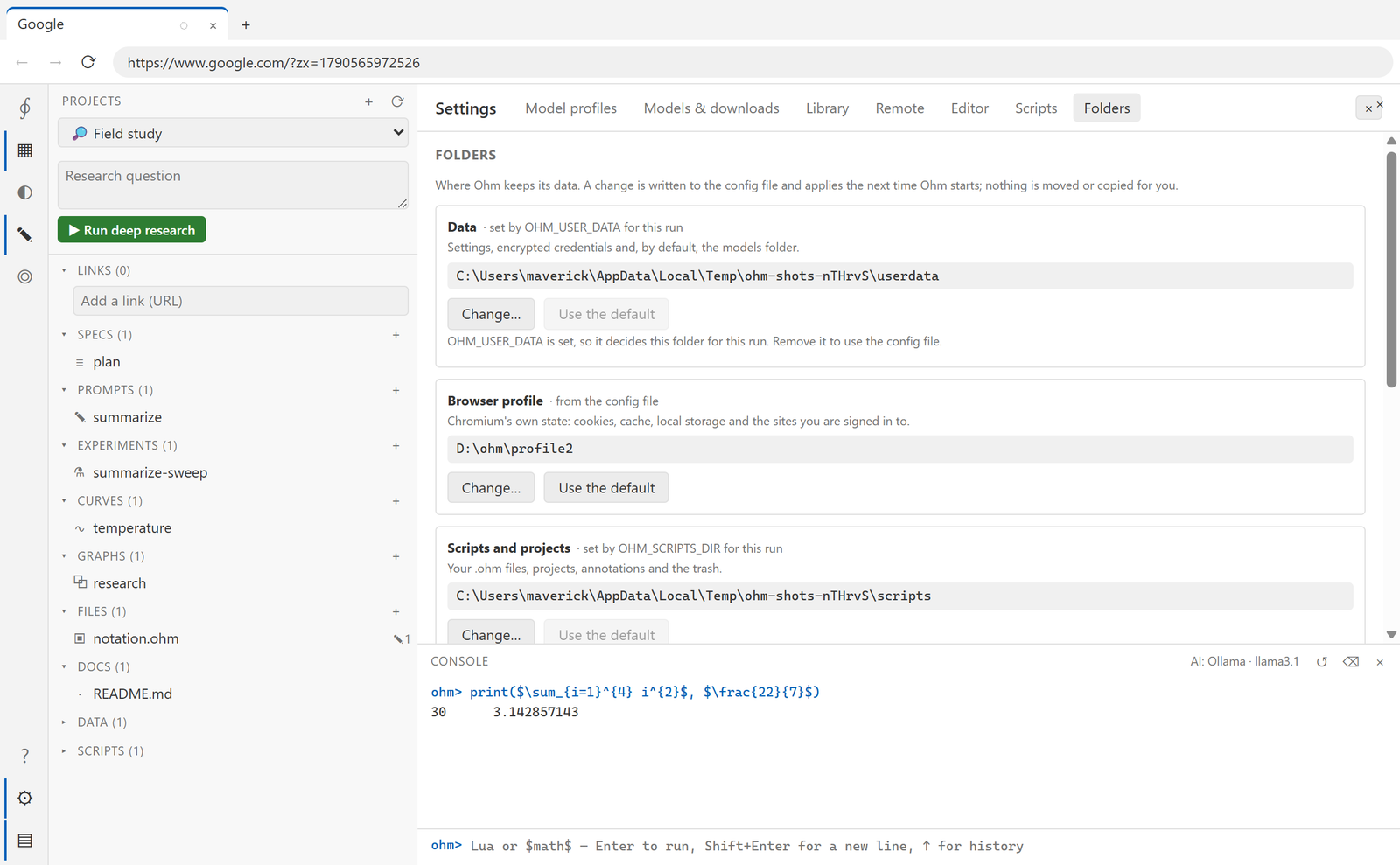
A change is written to config.json in the system's standard config folder
(%APPDATA%\Ohm on Windows) and applies at the next start: Chromium holds its profile
open for the life of the process, so Ohm does not switch folders underneath a running
session. The page says what is queued and offers a Restart now.
Nothing is copied for you. Point Ohm at an empty folder and it starts fresh there — which is exactly what you want for a second, isolated instance, and not what you want if you meant to take your data with you. Move the contents yourself first, with Ohm closed.
A folder that cannot be created or written to is refused when you choose it, rather than at the next start when it would stop the app from working.
Bringing a profile over from Chrome#
Ohm runs on Chromium, so a profile folder from Chrome, Edge, Brave, Vivaldi or Chromium is
very nearly the right shape already. Settings → Folders → Copy a profile from another
browser finds every profile belonging to your user — by the name you gave it, not
Profile 4 — and copies one across.
Two groups, both optional:
| Group | What comes over |
|---|---|
| Cookies and site data | Cookies, local storage, session storage, IndexedDB, and the key that decrypts the cookies |
| Bookmarks, history and autofill | Bookmarks, History, Favicons, Top Sites, Web Data |
What deliberately does not come over:
- Saved passwords. Ohm has no password manager, so copying your most sensitive file would achieve nothing.
- Extensions. Ohm does not load Chromium extensions, so a copy would only look like it worked.
- Caches. Most of a profile's size and none of its value.
Three things to expect:
- Close the other browser first. Chrome holds its own SQLite files open; anything locked is listed in the result so you can close it and import again.
- Cookies from recent Chrome on Windows may not carry over. Chrome now binds them to itself with app-bound encryption, and nothing else can read them — by design. Edge, Brave and Chromium usually carry over, and unencrypted site data always does, which for many sites is where the session actually lives.
- The copy goes into the profile folder Ohm will use next, never the one it is running from, so set a new Browser profile folder first. Ohm restarts into it.
Uninstalling removes the program and, if you agree, the settings folder. Your scripts folder is never touched by an uninstall.
See Environment for the exact paths, the flags and the config file format.